Getting Started
Navigator is a footage browser that docks inside Premiere Pro. Follow this page from download to your first scrubbed thumbnail. It takes a few minutes.
Quick install
- Close Premiere Pro. The installer adds a panel to Premiere. It can only do this when Premiere is closed.
- Run the installer. On Windows, run
Navigator-Setup-1.0.3.exe. On a Mac, run the.pkgthat matches your chip. The installer adds the panel and Sentinel for Narrative Node. Sentinel is a small background app that makes your thumbnails. - Open Premiere and your project. Choose . Dock the panel where you want it. Premiere keeps it at least 480 pixels wide.
Windows can show a warning when you run the installer. The Installation section shows how to continue.
Your first run
The Video Engine is included
Navigator uses its Video Engine to read your footage. The installer contains the Video Engine. You do not download anything on the first run, and Navigator works offline.
Sentinel checks at every start that the Video Engine runs. If it is missing or damaged, Sentinel downloads a new copy. The download is about 170 MB. The footer shows the progress. Sentinel checks the file against its SHA-256 checksum before it uses the file.
If you have no internet and the copy is damaged, the panel tells you and tries again. Your bins, names and durations still show. Only the pictures wait.
Let Sentinel read your footage
Sentinel reads only the folders that you allow. Your project can use media from a new place, for example a card copy on a second drive. Then a card under the toolbar shows how many folders need permission.
Click Allow. The thumbnails start to build in a second or two. You do not restart anything.
The first pass on a big project takes time. Sentinel builds the previews in the background at low priority. You can keep working while they arrive.
Where to get help
Send an email to [email protected]. The person who wrote the plugin reads it. If something looks broken, attach the panel log. Choose . The log shows what Sentinel did and which step failed.
Installation
Windows
There is one installer. It works on 64-bit Windows 10 and 11 (x64).
The installer is per-user, so Windows does not ask for an administrator password. Sentinel goes into your own programs folder and starts when you log in:
%LOCALAPPDATA%\Programs\Narrative NodeThe Video Engine is in its own folder next to Sentinel.
The installer adds the panel to Premiere through Adobe's plugin installer. Adobe's installer can ask you to
confirm a plugin that does not come from Adobe Exchange. If Creative Cloud is not available, the installer tells
you to double-click the .ccx file.
If Windows shows "Windows protected your PC"
Windows SmartScreen shows this screen for installers that it does not know yet. It does not mean that the file is damaged. Do these steps:
- Click More info on the blue screen.
-
Check that the Application name is
Navigator-Setup-1.0.3.exe. - Click Run anyway.
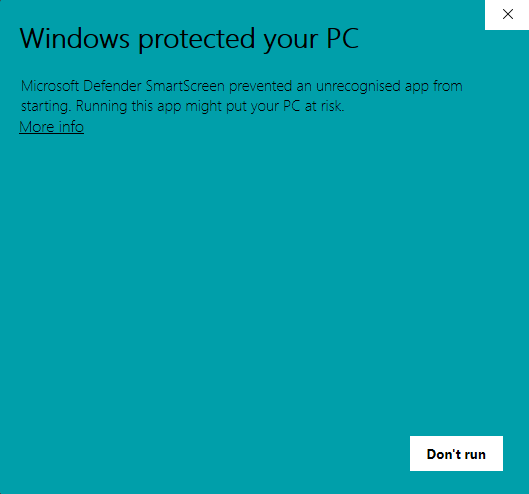
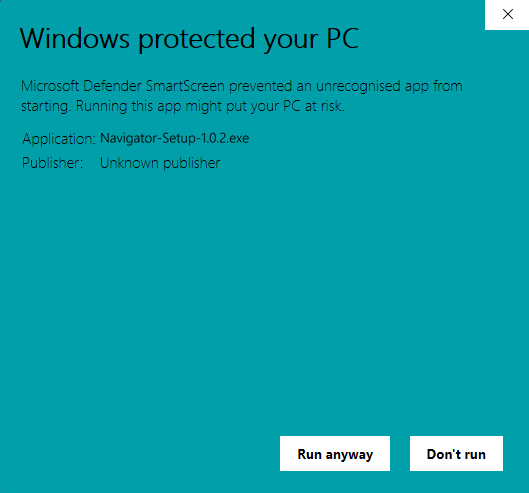
The Run anyway button does not show until you click More info. If you downloaded the file with a browser, you can also right-click it, choose Properties, select Unblock, and click OK. Then run the installer again.
macOS
Sentinel is in this folder and starts when you log in:
/Library/Application Support/Narrative Node
There are two packages. Navigator-1.0.3-arm64.pkg is for Apple silicon Macs.
Navigator-1.0.3-x64.pkg is for Intel Macs. To find your chip, open the Apple menu and choose
About This Mac. Look for Chip (Apple silicon) or Processor (Intel).
Uninstalling
On Windows, open and remove Navigator. The uninstaller stops Sentinel and removes the panel, the Video Engine and the preview cache. It does not touch your projects or your footage.
Internet Access
Navigator uses the internet to activate your license, to check it, and to look for updates. It also uses the internet to download the Video Engine if the installed copy is damaged. Your footage never leaves your computer.
Two programs take part. Sentinel makes the requests. Premiere Pro connects the panel to Sentinel. If your firewall blocks one of them, Navigator cannot reach the internet. You can see this when the license does not activate or when the panel never shows an update.
Windows: allow Premiere Pro and Sentinel
- Close Premiere Pro.
- Open the Start menu. Type Allow an app through Windows Firewall. Press Enter.
- Click Change settings. Click Allow another app, then Browse.
-
Open
C:\Program Files\Adobe\Adobe Premiere Pro 2026. The folder name has the year of your version. ChooseAdobe Premiere Pro.exe. Click Add. -
Click Allow another app again. Open
%LOCALAPPDATA%\Programs\Narrative Node. ChooseSentinelForNarrativeNode.exe. Click Add. - Find both programs in the list. Select Private and Public for each one.
- Click OK. Open Premiere Pro again.
If a program is already in the list, you do not add it again. Select its Private and Public boxes only.
macOS
The macOS firewall blocks incoming connections only. If Navigator cannot connect on a Mac, a security app is usually the cause. Little Snitch and LuLu are two examples. Open that app and allow Adobe Premiere Pro and Sentinel for Narrative Node.
Antivirus, VPN and work networks
Some antivirus programs have their own firewall. Add Premiere Pro and Sentinel to its list of allowed programs. On
a work network, ask your IT team to allow api.lemonsqueezy.com and
raw.githubusercontent.com. Sentinel uses these two addresses.
To test the change, open Navigator and paste your license key again. If the key activates, the connection works.
Licensing & Activation
The free trial
All features work for seven days from the first time you open Navigator. You do not need a card or an account. The footer shows how many days remain.
Buy and activate
- Choose a plan on the pricing page. Lemon Squeezy handles checkout. The refund policy explains cancellations and refunds.
- Your license key arrives by email. It is also on your Lemon Squeezy orders page.
- Paste the key into the panel. You can do this when the trial ends or before.
Two computers and offline use
One license covers two computers. A licensed computer works offline for 7 days. It checks the license again the next time it connects to the internet.
If the clock on your computer is set back, Navigator cannot measure the trial. The panel then asks you to correct the time. This is on purpose.
Features
Navigator uses the shortcuts of Premiere where Premiere has one. You have little to learn.
| Key | What it does |
|---|---|
| I O | Marks the in point and the out point on the frame under the pointer |
| F | Marks the range as a favourite |
| R | Marks the range as a reject |
| U | Removes the rating |
| , . | Inserts or overwrites in the open sequence |
| Ctrl V | Pastes a copied image into the open bin |
- Bin tree. Click a bin to open it. Click it again to fold it. Drag folders to change their order. Only your view changes. The project does not change.
- Search. Type in the search box. The matching clips fill the grid. The Project panel of Premiere shows the folders that hold a match, so you must open each folder to find the clip.
- Hover-scrub. Move the pointer across a thumbnail. Use the slider in the toolbar to change the thumbnail size.
- Export In to Out. Right-click a marked clip. Choose ProRes, DNxHR or a straight copy. H.264 and HEVC show when your graphics card can encode them.
- Asset folders. Link a Video Assets, Music or SFX folder in Settings. Click a file to listen. Double-click it to import it.
- Copy assets into the project. Click the blue Export icon in the footer. A window lists the files that Navigator will copy and their total size. Click Copy Files to start. Navigator copies the files from outside the project folder into
Assets/Assets from Narrative Node. The original files stay where they are.
Troubleshooting
- Windows shows "Windows protected your PC". What do I do?
- Click More info. Then click Run anyway. Windows shows this screen for installers that it does not know yet. The Installation section has pictures.
- The license does not activate, or the panel cannot check for updates. Why?
- Your computer can block Premiere Pro or Sentinel from the internet. Allow both programs in your firewall. The Internet Access section has the steps.
- The footer says Sentinel not running. What do I do?
- Sentinel starts when you log in. Navigator also tries to start it again. Premiere asks you to allow this, so choose Allow. If nothing happens, log out and log in again. Without Sentinel the panel shows your bins but no pictures.
- The tiles are empty and nothing builds. What do I do?
- Look for the card under the toolbar that says folders need permission. Click Allow. If the Video Engine is downloading, the footer shows the progress.
- A clip shows an amber state. What does it mean?
- Sentinel could not read that file. The cause is usually a format that the Video Engine cannot decode. Only that clip is affected.
- Drag and drop to the timeline does not work. Why?
- Premiere Pro 26.x does not accept clips that you drag out of Navigator, so the drop does nothing. Premiere Pro 27.x does not have this problem. On 26.x, mark your range. Then press , to insert or . to overwrite.
- The Video Engine download keeps starting again. Why?
- A broken connection starts the download from the beginning. On a slow or metered connection, let it finish one time. Navigator does not download it again.
Do you still have a problem? Save the log with . Send it to [email protected].
Release Notes
1.0.2
Changes
- The copy of outside files now shows a list of the files and their total size. Nothing is copied until you press Copy Files.
- A drag over empty space in the grid now starts where you press. Before, the rectangle could start far below the pointer.
- Sentinel checks at every start that the Video Engine runs. If it is damaged, Sentinel downloads a new copy.
- The footer line "Helper not running", the card "folders need permission" and the license window now link to this page.
- The Windows installer replaces the panel when the same version is already installed.
1.0.1
Update news
The panel reads news about updates from the public updates repository of Narrative Node.
1.0.0
First release
This release has a bin tree, hover-scrub thumbnails, favourites and rejects on ranges, Export In to Out, paste from the web, linked asset folders and a copy of outside files into the project. It comes as one installer for Windows x64 and two packages for macOS. One package is for Apple silicon. The other is for Intel.
Known issue
In Premiere Pro 26.x, a clip that you drag from Navigator to the timeline does nothing. Premiere Pro 27.x does not have this problem. On 26.x, press , to insert or . to overwrite.