Getting Started
Spotter is a free panel for Premiere Pro. It browses the music and sound-effect folders that you already have. Follow this page from download to your first imported sound. It takes a few minutes.
Quick install
- Close Premiere Pro. Premiere looks for new panels only when it starts.
- Run the installer. On Windows, run
Spotter-Setup-1.0.5.exe. On a Mac, run the.pkg. Each installer copies one folder into the extensions folder of Premiere and changes nothing else. Download them from the download page. - Open Premiere Pro and your project. Choose . Dock the panel where you want it. The panel works down to about 360 pixels wide.
Windows can show a warning when you run the installer. The Installation section shows how to continue.
Your first folder
The sidebar has two sections: Music and SFX. Click the + next to one of them. Choose a folder. Spotter reads the folder and all folders inside it. The sounds show with their waveforms.
You can add many folders to each section. For example, add a bought library from one drive and your own recordings from another drive.
Spotter only reads. It does not move, rename or delete a file. Nothing goes into your project until you import it.
Where to get help
Send an email to [email protected]. The person who wrote the plugin reads it. To report a bug or ask for a feature, use the issue tracker. The next person with the same problem can find your report there.
Installation
Spotter runs on Windows 10 and 11 (64-bit) and on macOS, on Intel and Apple silicon. It was built and tested with Premiere Pro 26.3. The extension declares support for Premiere Pro 22 and later.
Windows
The installer is per-user, so Windows does not ask for an administrator password. It copies the extension to this folder:
%APPDATA%\Adobe\CEP\extensions\com.narrativenode.spotterIf Windows shows "Windows protected your PC"
Windows SmartScreen shows this screen for installers that it does not know yet. It does not mean that the file is damaged. Do these steps:
- Click More info on the blue screen.
-
Check that the Application name is
Spotter-Setup-1.0.5.exe. - Click Run anyway.
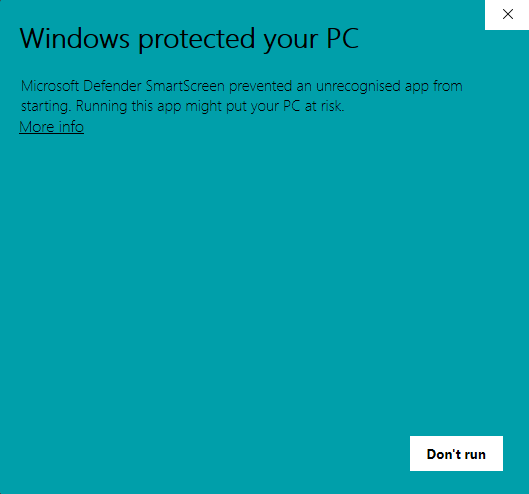
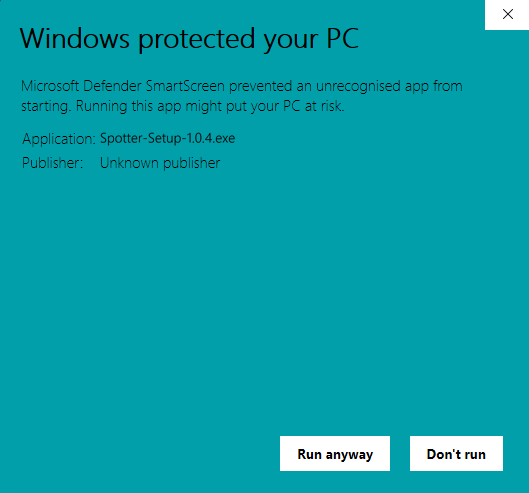
The Run anyway button does not show until you click More info. If you downloaded the file with a browser, you can also right-click it, choose Properties, select Unblock, and click OK. Then run the installer again.
macOS
One package works on Intel and Apple silicon Macs. It copies the extension to this folder:
/Library/Application Support/Adobe/CEP/extensions/com.narrativenode.spotter
macOS can say that it cannot verify the package. Right-click the .pkg file. Choose Open.
Confirm.
Use a ZXP installer
Each release has a file named Spotter-1.0.5.zxp. You can install it with a ZXP installer,
for example ZXPInstaller or Anastasiy's Extension Manager.
Uninstalling
On Windows, open and remove Spotter by Narrative Node. On a Mac,
delete the folder com.narrativenode.spotter shown above. Your sound files and projects stay as they
are. Spotter keeps the waveforms that it read in a small file. You can delete this file. The Updates and Privacy
section names it.
Using Spotter
Listen
Click a sound to select it. Press the play button or Enter. Turn on Auto-Play at the bottom of the sidebar, and each sound plays as soon as you select it.
Click the loaded sound to pause it or to play it again. Click the waveform in the player to jump to that point. Use the mute button and the slider to change the volume. The name of the sound is on a thin strip above the player.
Import into the project
Double-click a sound. You can also right-click it and choose Import into project. The sound goes
into a bin that has the name of its folder. Music goes into Music. Sound effects go into
Assets › SFX.
Subfolders become sub-bins. A file Wedding/Upbeat/song.wav in your Music folder goes into
Music › Wedding › Upbeat.
Put it on the timeline
Drag a sound to the timeline or to the Project panel. Premiere puts it in the project root. A moment later, Spotter moves it into its bin.
To put a sound on the timeline without a drag, right-click it and choose Insert at playhead. The sound goes on the first audio track that is free at the playhead.
Find a sound
Type in the search box. Each word that you type must be in the name of the file or in its folder. For example,
whoosh fast finds Whoosh Air Fast 01 in any folder.
Click a folder in the sidebar to see only its sounds. Click Music or SFX to see all sounds in that section.
Views and card size
Three buttons next to the search box change the view. Compact shows each sound as a small card with its name, length and folder. Cards adds a waveform to each card. List shows one row for each sound.
The slider after the folder name changes the card size in all three views. Spotter remembers your choice.
Right-click menu
The menu has Play, Import into project, Insert at playhead, Show in Explorer (Show in Finder on a Mac) and Copy file path.
Keys
While Spotter has focus, it uses only the arrow keys and Enter. All other keys go to Premiere. This includes the shortcuts of Premiere.
| Key | What it does |
|---|---|
| ← → ↑ ↓ | Selects the next sound in that direction |
| Enter | Plays the selected sound, or pauses it if it plays |
Formats
Spotter lists WAV, MP3, AIFF, M4A and AAC files. Premiere imports these formats. The player plays all of them except AIFF.
Spotter skips hidden files and empty folders. A file larger than 200 MB gets no waveform.
Updates & Privacy
Updates
A bar above the toolbar tells you when a new Spotter is available. When no update is available, the bar can show a short notice about Navigator or a new plugin.
The button on the bar opens a page in your browser. The close button hides that message for good. Spotter checks at most one time every six hours. If it cannot reach the file, it shows nothing.
What Spotter reads and stores
Spotter reads the folders that you add. It decodes their audio on your computer to draw the waveforms. It uploads nothing. It has no analytics, no accounts and no telemetry.
Spotter makes one network request. It reads a small file, spotter.json, from the public updates
repository of Narrative Node on GitHub. The file says if a newer Spotter exists and holds any notices. The button
on the bar and the Navigator button open a page of this site in your browser.
The panel remembers your folder list, view, card size and volume. It keeps the waveforms in a file named
waveforms.json. The file is in a folder Narrative Node/Spotter in your user app-data folder.
On Windows this is %APPDATA%. On a Mac it is ~/Library/Application Support. You can delete
the file at any time. Spotter then reads the sounds again.
Internet Access
Spotter works without the internet. The only function that needs the internet is the check for updates and notices. Premiere Pro makes this request for Spotter. If your firewall blocks Premiere Pro, the update bar does not show.
Windows: allow Premiere Pro
- Close Premiere Pro.
- Open the Start menu. Type Allow an app through Windows Firewall. Press Enter.
- Click Change settings. Click Allow another app, then Browse.
-
Open
C:\Program Files\Adobe\Adobe Premiere Pro 2026. The folder name has the year of your version. ChooseAdobe Premiere Pro.exe. Click Add. - Find Adobe Premiere Pro in the list. Select Private and Public.
- Click OK. Open Premiere Pro again.
If Premiere Pro is already in the list, you do not add it again. Select its Private and Public boxes only.
macOS
The macOS firewall blocks incoming connections only. If Premiere Pro cannot connect on a Mac, a security app is usually the cause. Little Snitch and LuLu are two examples. Open that app and allow Adobe Premiere Pro.
Antivirus, VPN and work networks
Some antivirus programs have their own firewall. Add Premiere Pro to its list of allowed programs. On a work
network, ask your IT team to allow raw.githubusercontent.com. Spotter uses this address.
Troubleshooting
- Is Spotter really free?
- Yes. Spotter is free and open source under the GPL-3.0 license. There is no trial, no account and no locked feature.
- Does Spotter work with video footage?
- No. Spotter browses music and sound effects only. To browse and scrub video clips in Premiere Pro, use Navigator.
- Does Spotter change or move my sound files?
- No. Spotter reads your folders and never writes to them. Spotter copies a file into your project only when you import it. Premiere then links to the original file on disk.
- Windows shows "Windows protected your PC". What do I do?
- Click More info. Then click Run anyway. Windows shows this screen for installers that it does not know yet. The Installation section has pictures.
- Spotter is not in the Extensions menu. What do I do?
- Close Premiere Pro fully and open it again. Check that the installer finished. Check that the folder com.narrativenode.spotter is in the CEP extensions folder of Premiere (the Installation section shows the paths). If the folder is there and the panel does not show, send an email to support with your Premiere Pro version.
- A folder says Not found. Why?
- The folder was moved or renamed, or its drive is not connected. Connect the drive and choose Rescan folders. You can also remove the folder from Spotter. Removing a folder does not delete anything on the disk.
- Why can I not hear an AIFF file?
- Premiere imports AIFF files, but the player in the panel cannot play them. Double-click the sound to import it. Then listen to it in Premiere.
- Waveforms are slow on a big folder. Can I make them faster?
- Spotter decodes each file one time, two files at a time, and remembers the result. The first pass on a large library or a network drive takes time. The Compact view reads only the length of each file, so it fills faster.
- Import says Open a project first. What does that mean?
- Spotter puts sounds into the project that is open in Premiere. Open or create a project. Then try again. Insert at playhead also needs an open sequence.
- The update bar never shows. Why?
- Spotter checks for updates through Premiere Pro. If your firewall blocks Premiere Pro, the check fails and the bar stays hidden. The Internet Access section has the steps.
Do you still have a problem? Send an email to [email protected]. Write your Premiere Pro version, your operating system and what you saw.
Open Source
Spotter uses the GPL-3.0 license. You can read, change and share the source. Anything that you build from it must stay open under the same license. The code is on GitHub.
To build the installers yourself, you need Node.js 20 or later. On Windows, you also need Inno Setup 6.
git clone https://github.com/Narrative-Node/spotter-by-narrative-node.git
cd spotter
npm test
node installer/build.mjs
The panel is plain HTML, CSS and JavaScript. It has no framework and no build step. A short ExtendScript file does the work inside the project. The README in the repository describes each file.
To try the panel without Premiere, open dev/preview.html in a browser. It runs with a made-up
library.
Release Notes
1.0.4
Offer page
The Try Navigator button opens the page that gives Spotter users their discount code for Navigator.
1.0.3
Play button and Try Navigator button
The play button is grey while a sound is paused and teal while it plays. The light outline is gone. The text and the 50% OFF label on the Try Navigator button are aligned.
1.0.0
First release
This release has Music and SFX folders with subfolders, real waveforms on every sound, three views with a card size slider, search across names and folders, import into mirrored bins, drag to the timeline and insert at the playhead. It also has a bar for updates and news that you can close.